
How to Mute People in CS2: Block Voice and Text Chat Fast Guide
Why Muting Players in CS2 Matters
CS2 is built around fast information: positions, rotations, utility usage, and economy calls. When voice chat turns into arguments or background noise, that information gets buried.
Common situations where muting helps:
Voice spam during clutches
Toxic teammates arguing about ranks
Enemy team text spam
Ping abuse or distracting sounds
Imagine defending B on Mirage with an AK-47 | Redline (Field-Tested) while three teammates argue in voice chat. One missed audio cue can mean losing the round. Strategic muting removes that risk.
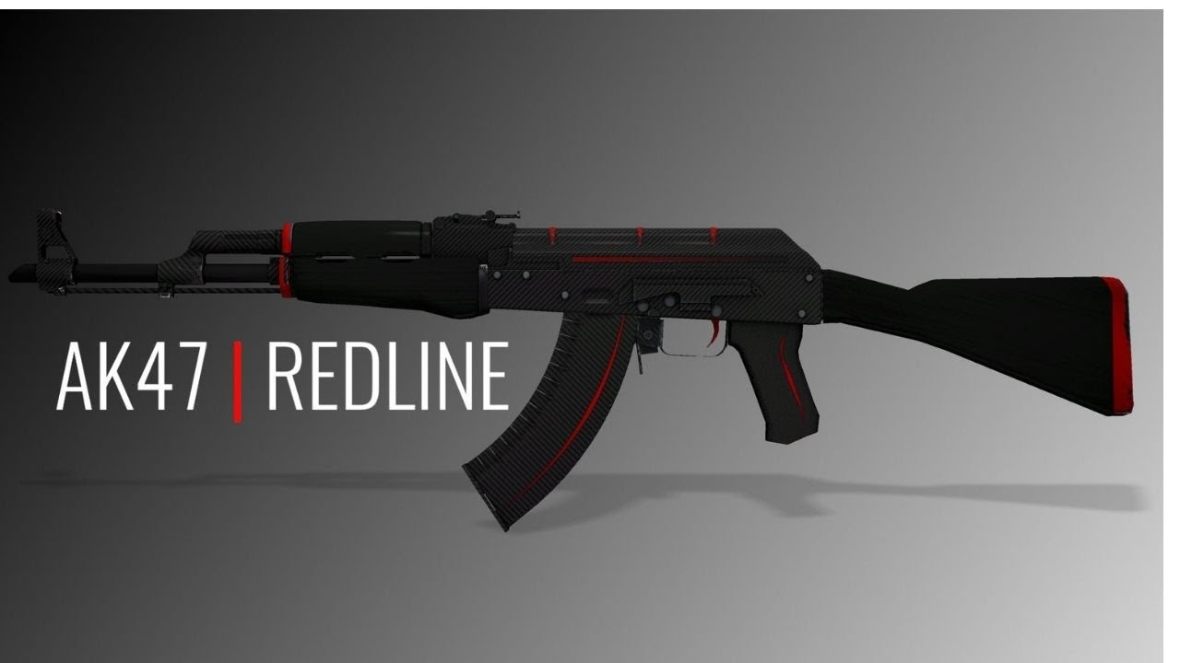
A clean communication channel is often the difference between coordinated executes and chaotic solo plays.
How to Mute People in CS2 Using the Scoreboard
The fastest way to mute someone mid-match is through the scoreboard.
Step-by-Step
Press TAB to open the scoreboard.
Locate the player you want to mute.
Click the speaker icon beside their name.
That player’s voice chat will immediately stop.
You can repeat the process for multiple players if needed. Muting affects only voice communication — their gameplay remains visible in the match.
When this method is best
A single toxic teammate
Loud microphone or background noise
Players spamming music or memes
Pro tip: Muting one disruptive player often improves team coordination more than muting the entire lobby.
How to Mute Enemy Team Chat in CS2 Settings
Sometimes the problem isn’t teammates — it’s the enemy team flooding chat with messages.
CS2 includes a built-in toggle to silence them.
Steps
Open Settings from the main menu.
Navigate to Communication.
Enable Mute Enemy Team.
Once enabled, voice communication from opponents is blocked automatically.
This setting is useful in competitive modes where enemy chat rarely provides useful information.
Other Useful Communication Settings
| Setting | What it Does |
|---|---|
| Mute Enemy Team | Disables enemy voice chat |
| Mute All But Friends | Only allows voice from Steam friends |
| Text Filtering | Filters offensive language |
| Player Pings | Disables ping spam |
| Hide Avatar Images | Removes distracting animated avatars |
These tools help streamline communication during serious matches.
Console Commands for Muting Voice and Text
Advanced players often prefer console commands for faster control.
Open the console using the ~ key (enable developer console in settings if necessary).
Useful Muting Commands
| Command | Function |
|---|---|
voice_enable 0 | Disables all voice chat |
voice_enable 1 | Re-enables voice chat |
cl_mute_enemy_team 1 | Mutes enemy team voice |
ignoremsg | Hides text messages |
Console commands are particularly useful during chaotic matches where muting through menus is too slow.
Note: Some players bind commands to keys for quick toggling during games.
Example:
bind "F9" "voice_enable 0"
Pressing F9 instantly disables voice chat.
When Muting Improves Competitive Performance
Muting is sometimes misunderstood as ignoring teamwork. In reality, selective muting can improve team communication.
Situations where muting helps performance:
1. Toxic arguments
Players arguing about mistakes rarely give useful callouts.
Silencing them keeps the focus on enemy positions and utility usage.
2. Clutch situations
During a 1v3 clutch with a Desert Eagle | Blaze (Factory New), teammates often talk over each other.
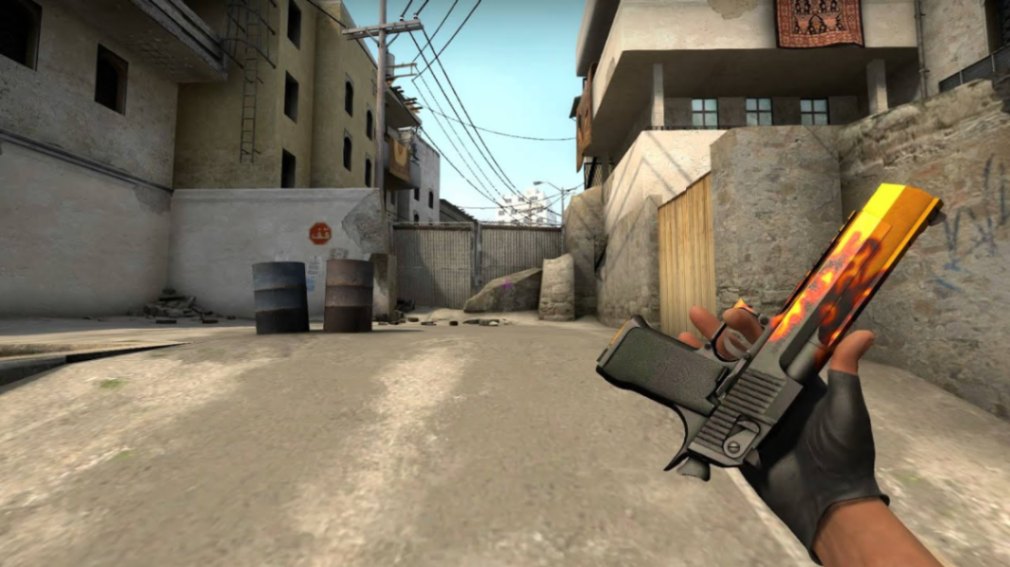
Muting background chatter allows you to hear footsteps and reloads clearly.
3. Voice spam
Some players broadcast music or loud background noise. Muting them restores clear audio cues.
4. Tilt control
CS2 is a mental game. Removing negative voices helps players stay calm and make better decisions.
Pro tip: Professional teams maintain strict voice discipline — only essential information is spoken during rounds.
Key Takeaways
How to mute people in CS2 is easiest through the TAB scoreboard speaker icon.
Settings allow you to mute enemy team voice or limit chat to friends.
Console commands provide instant muting options during matches.
Selective muting reduces distractions and improves focus.
Clear audio cues are critical for clutch situations and rotations.
FAQ
How do you mute one player in CS2?
Press TAB, locate the player on the scoreboard, and click the speaker icon next to their name. This immediately disables their voice chat.
Can you mute the entire enemy team in CS2?
Yes. Enable Mute Enemy Team in the Communication settings or use the console command:
cl_mute_enemy_team 1
How do I disable all voice chat in CS2?
Open the console and enter:
voice_enable 0
This turns off all voice communication until you re-enable it with voice_enable 1.
Does muting players affect gameplay?
No. Muting only blocks voice or text chat. Players remain visible on the scoreboard and continue playing normally.
Can you mute text chat in CS2?
Yes. The console command ignoremsg disables most text messages in the game.
Author & Update
Written by a CS2 economy and skins analyst specializing in gameplay mechanics and in-game communication systems.
Updated: March 2026